
Keyword Discovery Quick-Start Guide
Searching for keywords
To begin searching for keywords, click on the Research button in the main toolbar, and follow these steps:

- Enter a search term in the Search Term field. The search terms can be in the following languages: English, German, French, Spanish,
Finnish, Swedish, Dutch and Italian.
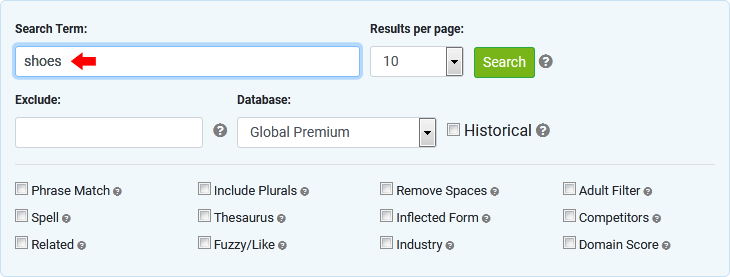
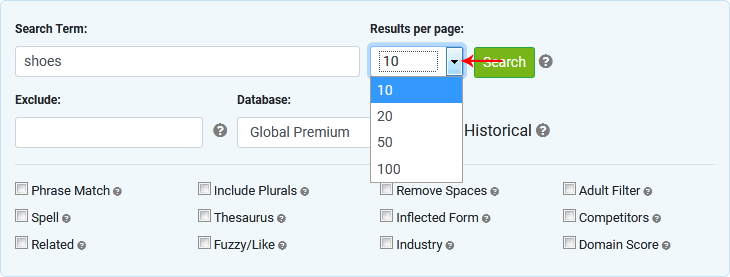
- Select the number of results to be displayed per page.
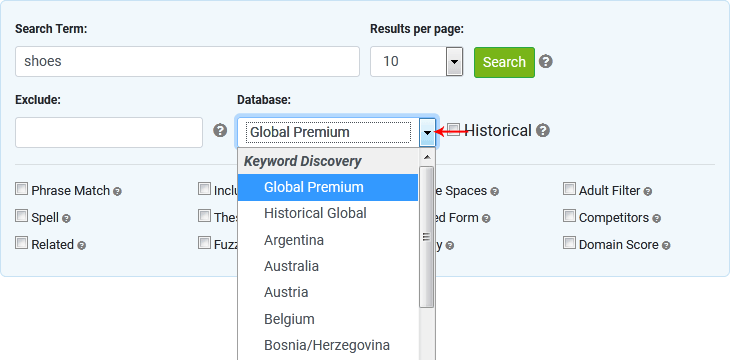
- Select a database. See the Databases manual page for details on database types.
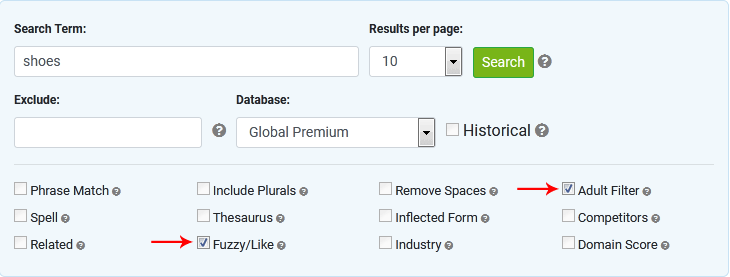
- Select search filters (optional). See the Search types manual page for details on advanced search types.
- To begin the search, click the Search button.
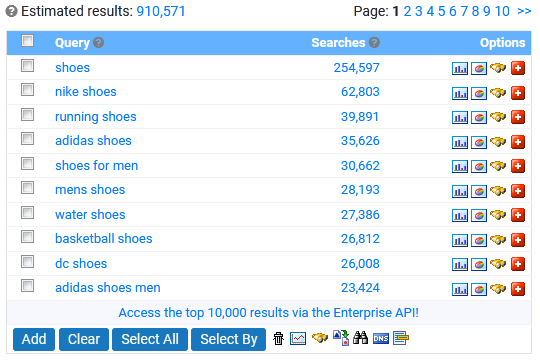
- The search results are displayed. The searches column displays the number of searches for the keyword over the last 12 months for Premium, Regional and Specialty databases (ebay, Shopping, News, Google, Yahoo). Respective historical databases, such as Premium Historical, Regional Historical and Specialty Historical databases are from August 2006 to present. We also have a Historical Global database that is compiled from searches collected since June 2005 to present.
Analyzing the results
To display further information about the keywords, click the Analyze button (graph icon) underneath the results.
Analysis is only currently available on the Global premium database.
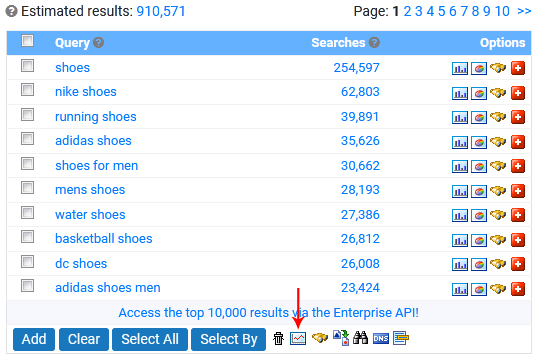
If the KEI/occurrence value for a keyword is cached (another user has fetched it in the last 90 days), Keyword Discovery will display the cached data immediately. A small graph image is shown for keywords with no cached results available.
Note: Cached results do not use analysis credits.
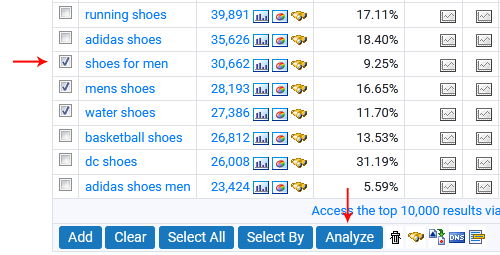
To retrieve the occurrences and KEI in real time, select the keywords you wish to analyze, then click the Analyze button to retrieve the results in real time. An analysis credit will be used for each keyword selected.
The occurrence/KEI columns will show the text 'working' while the data is being fetched, and will display the data once it has been retrieved.
Keyword Discovery will also display your remaining credits for the day.
Once you have used all your credits, you will no longer be able to fetch Occurrences & KEI for keywords until the next day. Your analysis credits will reset at midnight Australian EST (GMT +10).
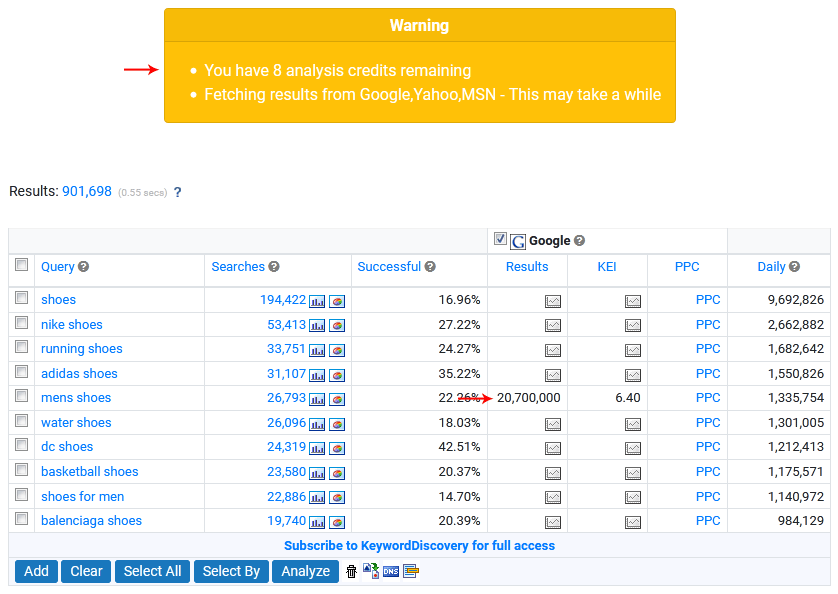
The occurrence figures (an estimate of the number of pages in which each search term appears) are obtained from Google. Each plan includes a different amount of analysis credits. You can check what each plan includes at the Subscription plans comparison page.
For more information, see the Analyzing Keywords manual page.
Charts
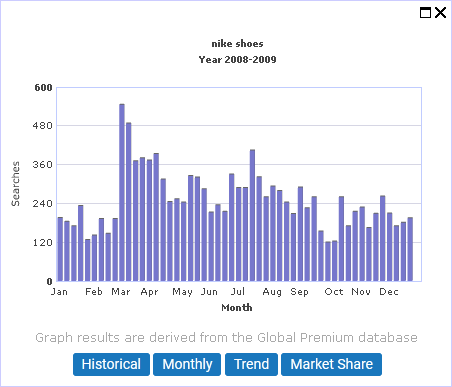
To display various charts of the searches, click on the chart icons next to the searches column. The chart type can be changed between historical (shows weekly data), monthly and trend. The market share chart shows the percentage of searches performed on various search engines. All chart data is from the global premium database.
Projects
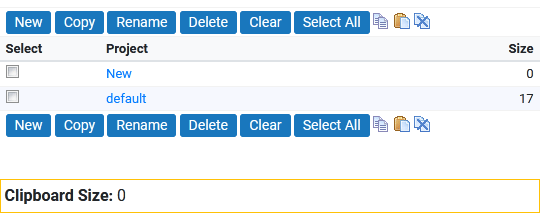
Projects are lists of keywords that can be saved for later use, analyzed, translated or export. To display the project manager, click the Projects button in the toolbar.

A default project exists for each user and cannot be deleted. For information of how many projects you get with your subscriptions and how many keywords you can store per project, see the Subscription Plans Comparison page.
Creating a new project
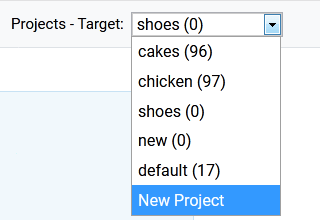
To create a new project, click the New button. Alternatively select "New Project" in the project drop down box located at the far right of the navigation toolbar. Enter a name for the project in the popup window then click OK. Follow the instructions below to add keywords.
Selecting an existing project to work with
To view or select a project, click the project's name. The currently selected project name and the number of keywords in the project are displayed at the top right of the page.
Adding and removing keywords from a project
To add keywords and their associated data to a project, you will first need to perform a search. Then select the keywords you would like added to the project by ticking the checkboxes next to the keywords in the search results. Alternatively, the Select All button can be used to select all keywords from the current page. Click the Add to Project button to add the selected keywords to the project.
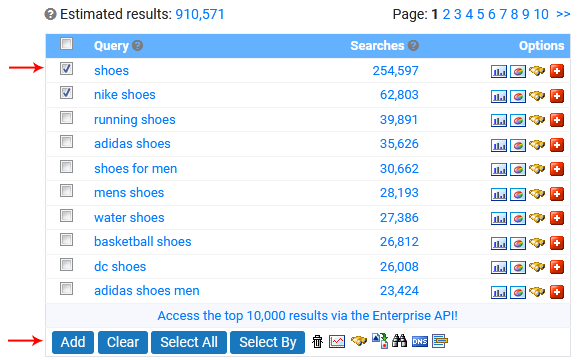
Once added, the background color of the added keywords will be darkened and a green tick is displayed in the query column. To remove the keyword, tick the checkboxes and click the trash can button. Repeat the process to add or remove keywords from the project.
Renaming a project
To rename a project, click on the project name, then click the rename button.
Loading a project
See the Loading Projects manual page.
Deleting a project
To delete a project, tick the checkbox next to the project, then click the Delete button.
Exporting a project
See the Exporting Projects manual page.
For more information, see the Projects manual page.
Exporting keywords
To export the list of keywords and their associated data from a search, you can click the export button on a result set.
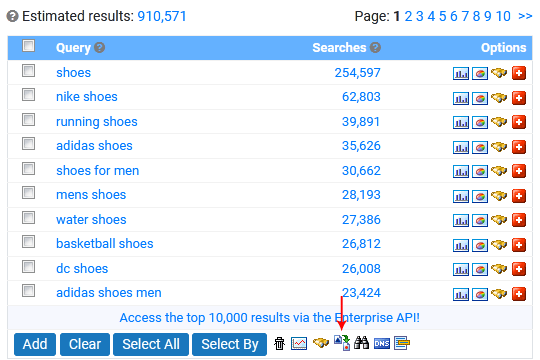
For more information, see the Exporting Keywords and Their Data manual page.
More information
More detail is available in the Keyword Discovery manual.
Online version: http://www.keyworddiscovery.com/kd-manual.html
PDF download version: http://www.keyworddiscovery.com/static/kd_manual.pdf
Frequently Asked Questions are answered in our FAQ section.
An overview Keyword Discovery's features can be found in the Features Tour.